
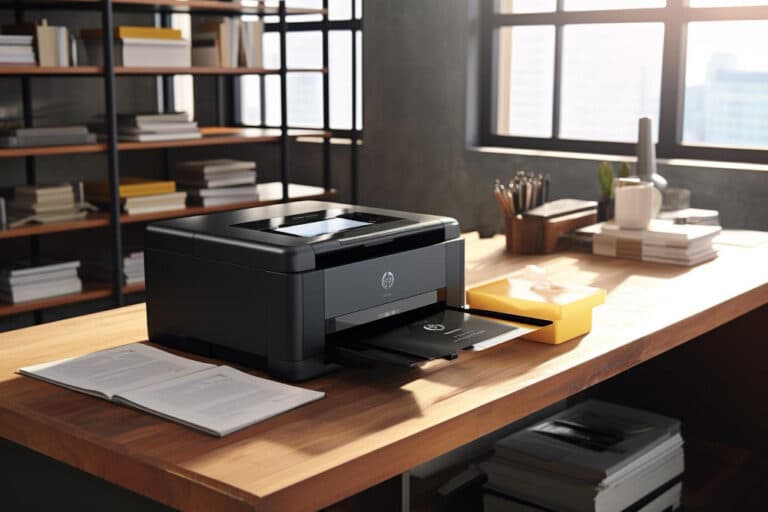
Connect your HP Envy 5010 Printer to WiFi Network
Connecting your HP Envy 5010 printer to a WiFi network can streamline your printing process, allowing you to print from anywhere within your home or office.
Follow these steps to complete the WiFi setup your HP Envy 5010.
Start by ensuring your HP Envy 5010 printer is powered on. Next, navigate to the printer’s control panel and tap the Wireless icon to access the Wireless Summary screen. From here, you can access the Wireless Settings menu.
Within this menu, you’ll find the Wireless Setup Wizard, which will help you link your printer to your wireless network.
The Setup Wizard will scan for nearby wireless networks. Once the scan is complete, you should see a list of available WiFi networks. Select your desired WiFi network from the list and enter the password if prompted.
Ensure that you input the WiFi password correctly to avoid any connection issues.
If your router supports WiFi Protected Setup (WPS), you can use this feature to make a quicker connection. To use WPS, press and hold the WPS button on your router until the WPS light starts blinking.
Then, press the WPS button on your HP Envy 5010 printer and wait for the wireless connection to establish. This method can sometimes simplify the wireless setup process. You are still ensuring that your router and printer support this feature, which is essential.
Once you’ve successfully connected to the WiFi network, your HP Envy 5010 printer should display a confirmation message on its control panel.
If you encounter difficulties, recheck your WiFi network credentials and ensure your router functions correctly. It also helps to move the printer closer to the router during the initial setup to guarantee a strong signal.
After confirming your printer is connected, you must install the necessary software and drivers on your PC to complete the setup. Visit the official HP website, navigate to the support section, and search for the HP Envy 5010 printer drivers.
Download and install the HP Smart App to facilitate a smooth wireless setup and enable advanced printer management functions.
The HP Smart App simplifies the wireless setup. It offers functionalities like monitoring ink levels, scanning documents, and managing printing tasks. Open the app and follow the on-screen instructions to add your printer.
Ensure your PC is connected to the same WiFi network as your HP Envy 5010 printer to streamline the process. The app should automatically detect your printer, and you can proceed with the guided setup to complete the WiFi setup.
Once the HP Smart App confirms that your printer is connected to the WiFi network, you can start printing wirelessly.
Test the connection by sending a document to print from your PC or any other device connected to the same WiFi network. If the printing task is successful, your HP Envy 5010 printer will be fully operational on your wireless network.
If you experience connection issues, restart your router, printer, and PC before attempting the setup again. Additionally, ensure your HP Envy 5010 printer and the wireless router firmware are up to date, as outdated firmware can sometimes cause connection problems.
If you require further assistance with the setup, don’t hesitate to contact HP’s customer support for additional solutions.
Alternatively, you can explore more comprehensive Hewlett-Packard printer repair and copier repair NYC solutions from providers like ABC Computer Services Inc., where expert support is always available to help with your wireless setup and other technical needs.
Unpack Your HP Envy 5010 and Connect to Power
When you first receive your HP Envy 5010 printer, the initial step in setting it up involves carefully unpacking and connecting it to a power source. This is a critical phase for ensuring your printer is ready for setup.
The HP Envy 5010 is designed for home printers, making it an excellent choice for your home office. Removing the printer from its packaging ensures you keep all accessories like cables, power cords, and manuals handy.
HP Envy 5010 is one of the popular printers that home users prefer because of its sleek design and efficient performance. Once you have your printer out of the box, place it on a stable surface near your desktop or laptop where you plan to complete the setup. Ensure you have easy access to a power outlet.
It’s essential to position the printer within range of your central WiFi router for a seamless connection later. At ABC Computer Services Inc., we recommend verifying that all the components are included in the package—cable ties, manuals, and ink toner cartridges should be in the box.
Missing any of these could pose a significant challenge during the setup process. Next, connect the power cord to the back of the HP Envy 5010 and plug it into the wall outlet. Press the power button to switch on the device.
Surge protectors are advised to be used to safeguard against any unforeseen power fluxes. While the printer is powering up, you’ll observe the control panel lighting up, setting the stage for the next steps in the setup process.
After connecting the HP Envy 5010 to the power, take a moment to install the ink toner cartridges. Open the ink cartridge access door on the front of the printer.
Carefully unbox the ink toner cartridges and remove the protective tape. It’s crucial to correctly install each ink toner cartridge into the designated slot.
Snugly fit the ink toner cartridges until they click into place, and then close the access door. If you’ve opted to purchase from a store, you may have received additional ink toner cartridges, so keep these as backup.
Don’t forget to recycle any packing materials responsibly—many stores offer return and recycling options. Next, turn your attention to the paper tray. Pull out the input tray and load it with appropriate paper, typically plain A4 paper, for initial setup. Adjust the paper width guides to ensure the stack is neatly aligned.
Close the input tray once the paper is loaded correctly. Before setting up the wireless connection, ensure your device is ready. The touch screen of the HP Envy 5010 will prompt you through the initial setup, asking you to choose your language, region, and other preferences.
This alignment of initial settings is crucial for flawless operation.
At ABC Computer Services Inc., we often emphasize that this foundation setup is vital for subsequent processes. After completing your printer’s basic setup and installation of ink toner, you’re ready to connect your HP Envy 5010 to a WiFi network.
For detailed steps, refer to our guide on Connecting the HP Envy 5010 Printer to the WiFi Network.
Set Up Your Printer in Setup Mode
Setting up your HP Envy 5010 printer in setup mode is a crucial step in the installation process. When you unpack your new HP Envy 5010, initiating it in setup mode is essential to connect it to a WiFi network.
First, ensure that your printer is plugged into a power source and turned on. Once powered on, you’ll need to access the setup wizard.
This wizard will help guide you through the initial steps, including establishing a WiFi connection necessary for printing from any device without needing physical cables.
First, locate the control panel on your HP Envy 5010. Navigate to the settings menu and look for the wireless or network setup option. Select this option to enter the setup wizard. The wizard is designed to be user-friendly and will walk you through each step systematically.
You aim to connect your printer to the same WiFi network as your other devices, such as PCs or smartphones.
Using the HP Smart App can significantly streamline this process. Download and install the app from the app store. The HP Smart App is compatible with both Windows and macOS operating systems, so it can be used on various devices.
Once installed, open the app and follow the on-screen instructions to add your new HP printer to it. The app will prompt you to confirm that your printer is in setup mode. Once confirmed, you’ll be guided through the necessary WiFi setup steps.
During this process, the app will scan for available WiFi networks. Make sure your WiFi router is on and broadcasting a signal. When you see your network listed, please select it and enter your WiFi password when prompted.
This will connect your HP Envy 5010 printer to your home network. If, at any point, you face issues with the setup, the community forums and HP support content are excellent resources where other users can share solutions for common problems.
It is important to ensure your HP Envy 5010 remains in setup mode throughout this process. If it exits setup mode—possibly due to an error or a prolonged period of inactivity—you may need to reset it to start over.
Instructions for resetting your printer are in the user manual or on the official HP website. Additionally, staying in setup mode is crucial for the printer to recognize the WiFi network and securely connect.
After successfully connecting to WiFi, conduct a test print to verify everything functions as expected. Open any document on your PC or smartphone and select print. Ensure that the HP Envy 5010 is chosen as the printer.
If the document prints correctly, congratulations, your printer setup is complete! Now, you can enjoy the convenience of wireless printing from any connected device.
Maintaining an active WiFi connection is vital for the optimal performance of your HP Envy 5010. Keep your router within a reasonable distance from the printer to avoid signal dropouts.
Suppose you use different networks (e.g., workplace or community spaces). In that case, you need to reconfigure the WiFi settings on your printer to match the new network. The HP Smart App will be handy, enabling quick setup changes and easy management of multiple printers.
HP printers, including the HP Envy 5010, are designed to make printing seamless. By following this guide to set up your printer in setup mode, you’ll ensure that your devices can always send printing jobs efficiently.
Should you need further assistance, ABC Computer Services Inc. is always here to help with any HP printer setup issues you may encounter.
Using the HP Smart App can significantly streamline this process. Download and install the app from the app store.
The HP Smart App is compatible with both Windows and macOS operating systems, so it can be used on various devices. Once installed, open the app and follow the on-screen instructions to add your new HP printer to it.
The app will prompt you to confirm that your printer is in setup mode. Once confirmed, you’ll be guided through the necessary WiFi setup steps.
During this process, the app will scan for available WiFi networks. Make sure your WiFi router is on and broadcasting a signal. When you see your network listed, please select it and enter your WiFi password when prompted.
This will connect your HP Envy 5010 printer to your home network. Suppose you face issues with the setup at any point. In that case, the community forums and HP support content are excellent resources where other users share solutions for common problems.
Ensuring your HP Envy 5010 remains in setup mode throughout this process is essential. If it exits setup mode — possibly due to an error or a prolonged period of inactivity — you may need to reset it to start over.
Instructions for resetting your printer are in the user manual or on the official HP website. Additionally, staying in setup mode is crucial for the printer to recognize the WiFi network and securely connect.
After connecting to WiFi, conduct a test print to verify that everything functions as expected. Open any document on your PC or smartphone and select print. Ensure that the HP Envy 5010 is chosen as the printer.
If the document prints correctly, congratulations, your printer setup is complete! Now, you can enjoy the convenience of wireless printing from any connected device.
Maintaining an active WiFi connection is vital for the optimal performance of your HP Envy 5010. Keep your router within a reasonable distance from the printer to avoid signal dropouts.
Suppose you use different networks (e.g., workplace or community spaces). In that case, you need to reconfigure the WiFi settings on your printer to match the new network.
The HP Smart App will be handy, enabling quick setup changes and easy management of multiple printers.
HP printers, including the HP Envy 5010, are designed to make printing seamless. By following this guide to set up your printer in setup mode, you’ll ensure that your devices can always send printing jobs efficiently.
Should you need further assistance, ABC Computer Services Inc. is always here to help with any HP printer setup issues you may encounter.
Install the HP Smart App to Complete the WiFi Setup
Setting up your HP Envy 5010 printer for wireless printing is a breeze when you use the HP Smart app. This step-by-step guide will help you complete the WiFi setup, effortlessly connecting your device to a wireless network.
With the HP Smart app, you can easily manage your printer and other HP devices from your smartphone, tablet, or desktop, making your printing tasks more convenient and efficient.
First, it’s essential to download and install the HP smart app on your device. This app is available for download from the Microsoft Store for Windows PCs, as well as from the App Store for iOS devices and Google Play for Android devices.
The HP smart app provides all the support you need to connect your HP Envy 5010 printer to a wireless network. Once installed, open the app and follow the simple on-screen instructions to set up your WiFi connection.
To begin the WiFi setup, ensure your HP Envy 5010 printer is turned on and in setup mode. If you’re not sure how to do this, refer to our previous guide on how to unpack your HP Envy 5010 and connect it to power, as well as how to set up your printer in setup mode.
The HP Smart app will guide you through the process, making it easy to connect your printer to the wireless network.
The app’s setup wizard will prompt you to select your wireless network from available networks. Choose your network and enter the WiFi password to establish the connection. If your network needs to be listed, ensure your printer is within range of the wireless router and try again.
The HP Smart App provides continuous support and ensures a seamless connection to your wireless network.
Once the HP Envy 5010 printer is connected to the WiFi network, the app will complete the wireless setup. The printer may take a few minutes to connect, so be patient. After establishing the connection, you can use the printer for all your printing needs.
The HP smart app lets you print, scan, and copy documents directly from your device, enhancing your business solutions and personal tasks.
The HP Smart App is incredibly user-friendly and offers a range of features designed to simplify your printing experience. You can monitor your printer’s status, check ink levels, and access a variety of print settings, all from the convenience of your mobile device or desktop.
Additionally, the app provides access to HP’s community base, where you can get support and learn more about optimizing your HP Envy 5010 printer.
For businesses, the HP Smart app is an invaluable tool for streamlining operations and boosting productivity.
Whether you’re working from a desktop or on the go with mobile devices, the app’s integration with Microsoft Office and other business applications ensures seamless printing and document management.
The available solutions and services tailored for business users make it easier to handle high-volume printing tasks efficiently.
If you encounter any challenges during the WiFi setup, don’t hesitate to seek support from ABC Computer Services Inc. Our professional services and solutions are designed to help you get the most out of your HP Envy 5010 printer.
We offer comprehensive support to resolve technical issues and ensure your wireless network connection is stable and reliable.
In conclusion, installing the HP smart app is a crucial step in completing the WiFi setup for your HP Envy 5010 printer. This intuitive app guides you through the entire process, from connecting to the wireless network to managing your printing tasks.
Whether for personal use or business solutions, the HP smart app provides the support and functionality you need to optimize your printing experience.
We hope this comprehensive guide has helped you connect your HP Envy 5010 printer to WiFi.
If you encounter any issues or need further assistance, contact our expert team at ABC Computer Services Inc. for prompt and reliable printer repair and setup services.
Ensuring your HP Envy 5010 is seamlessly connected to your wireless network will enable you to enjoy its full range of features. Happy printing!